Draw rooms, openings and levels, and set up scenes
In Gatherune you draw a room as an area and its walls follow, instead of laying walls one line at a time. Click a wall to add a door, an archway or a window, add levels above or below, and link scenes with exits. For uploaded pictures, grids and lighting, see the maps page.
Updated
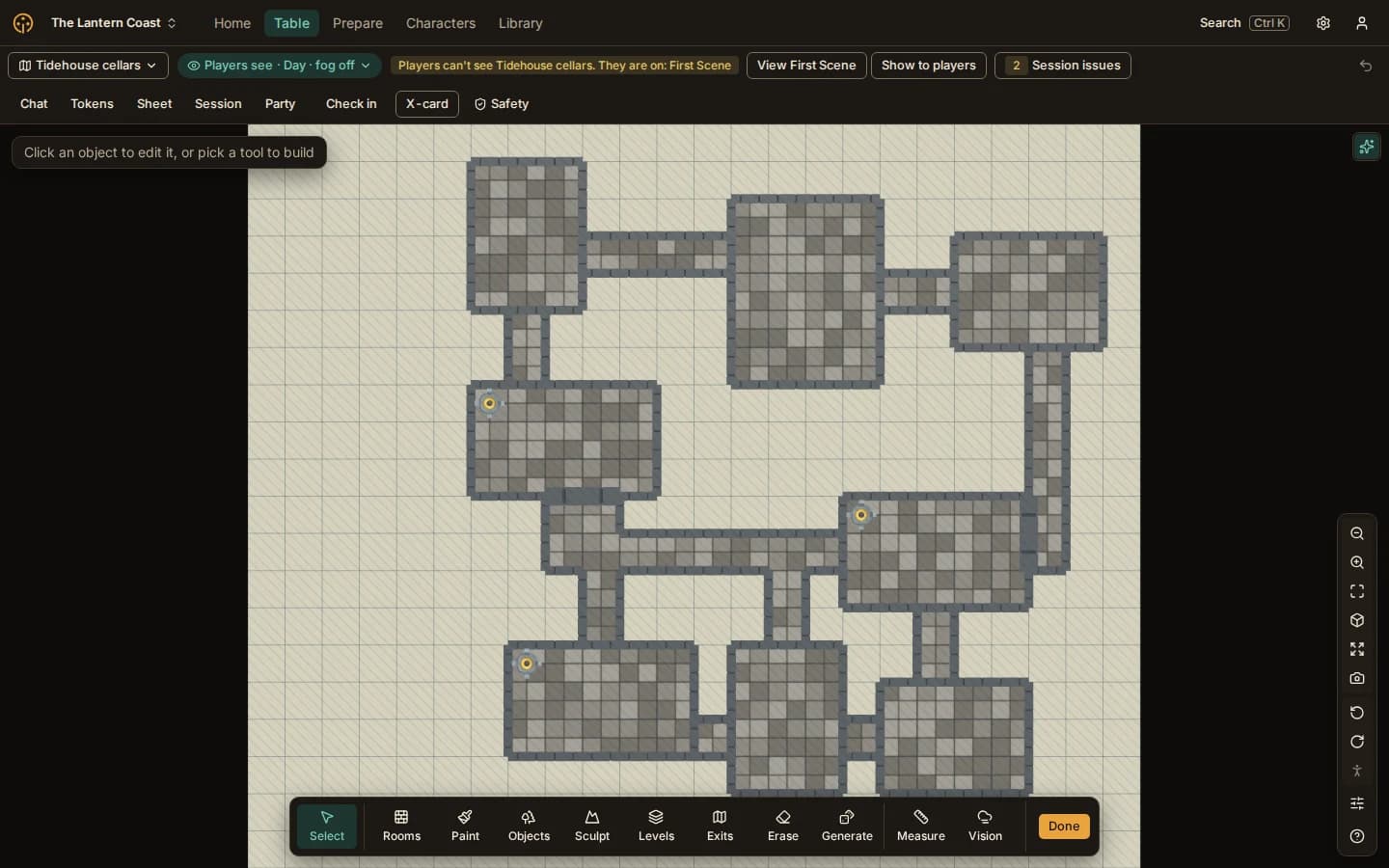
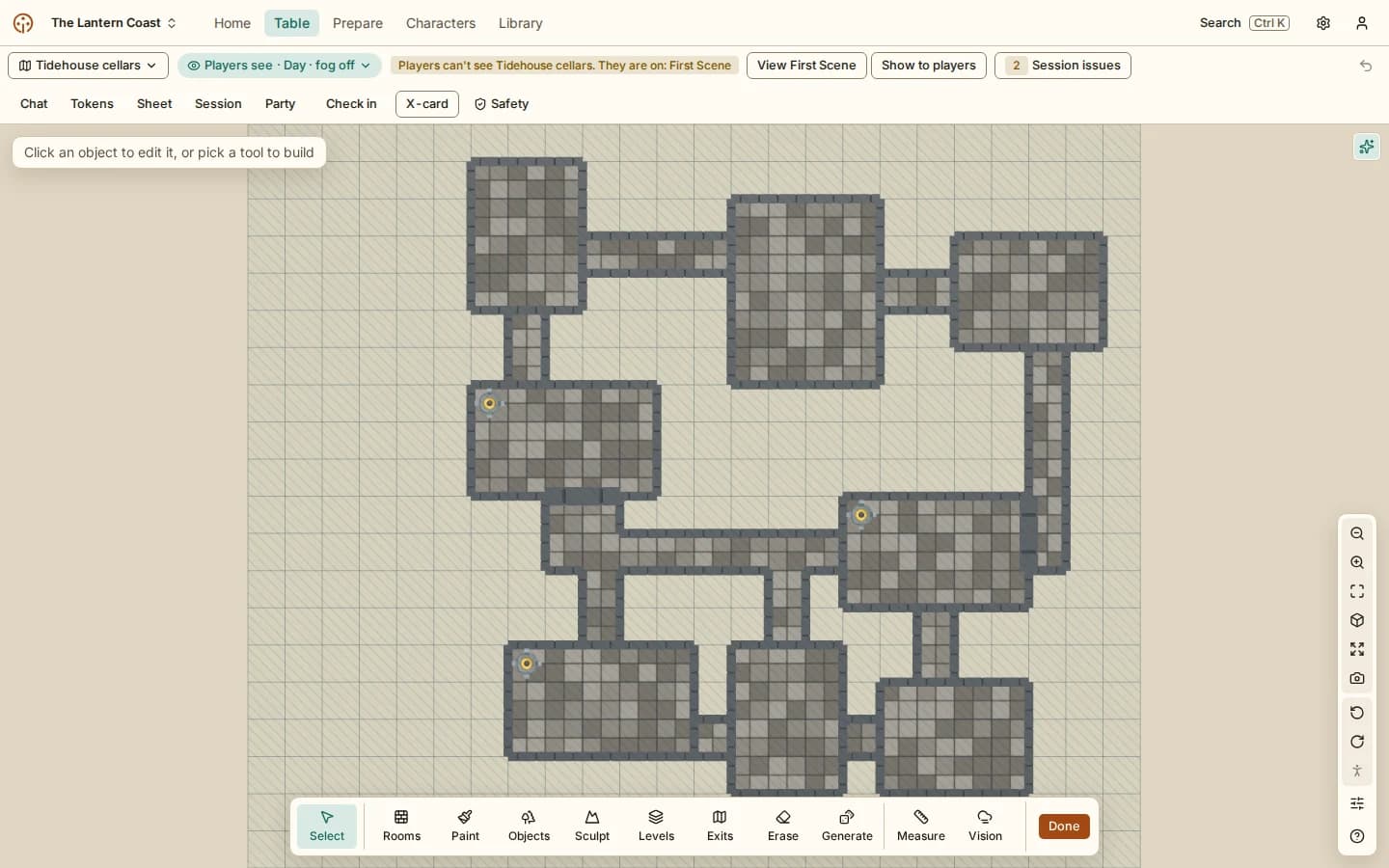
Draw space and the walls follow
Press R for the Rooms tool. Choose Room, Corridor, Wall or Cave, then drag on the map. The floor and the walls around it are made together. Players see painted floors, and doors beside their tokens, but never the walls themselves.
- Drag over an existing room to extend it. Rooms that overlap become one.
- A Corridor is one or two squares wide, in your scene's units.
- Choose Erase to carve space out. The walls close around the hole.
- Choose Wall to add a single wall where you want one.
- Pick a floor style for a room, and change the floor alone later.
Doors, archways and windows
- In the Rooms tray, choose Door, Archway or Window and click a wall to place it.
- A door can be closed, open, locked, secret, barred, stuck or a portcullis. A secret door is never sent to players.
- A window lets sight through but not walking.
- Select a wall to switch Blocks walking and Blocks sight, or to Make door. Select a door to Make wall.
- Select a room to Move, Rotate, Furnish or Dress it.
Levels and stairs
- A scene can have more than one level. Add level above, or Add cellar.
- Join levels with stairs or a ramp, and set each level's elevation.
- Levels need a square map of up to 128 by 128 squares. Gatherune tells you so when the scene does not qualify.
- The level you are viewing is the one you draw on.
Exits between scenes
The Exits tool (X) draws entry and exit zones as rectangles on a scene. An exit can lead to an entry on another scene, and from an exit you can send the selected tokens through. You review where each arrives before they move. Only the game master sees the zones.
Start a scene
- New scene opens with Start with and Set up. Start with offers a blank square or hex grid, an uploaded map image, an Overland map, an imported VTT file, a generated dungeon or a generated environment.
- Ready-made places are starts you can edit: Dungeon, River crossing, Town, Campsite, Market, Tavern, Ruined shrine and Roadside checkpoint.
- Scene settings holds the name, columns and rows, top-down or isometric view, the map picture and the scale. Weather is set in Fog & weather (F). It is seen and heard by everyone, and thick weather shortens what players' tokens can see. An overland map is set up under Scene settings, then Overland map.
- Scenes you delete can be restored from Deleted scenes. Players stay on their current scene until you choose Show to players.
Questions
How is this different from drawing walls by hand?
You draw the room and Gatherune makes the walls to match. Extending, merging and carving a room redraws its walls for you.
Do rooms work on a hex grid?
Some tools need square cells. Levels and the Isometric view are square only, and Gatherune says so when a tool is unavailable.
Can players see the walls?
No. Players see painted floors and doors beside their tokens. Walls, secret doors and exit zones are not sent to them.
Where do lights, fog and uploaded map pictures live?
On the maps and lighting page, and the fog of war page.